
1) Exclude Alarm Clock from battery optimization
-
Turn the following three options off for keeping Alarm Clock from battery optimization.
- [Settings - Battery - Energy Saver (or Others) - Alarm Clock - Turn off "Background Freeze", "Abnormal Apps Optimization" and "Doze"]
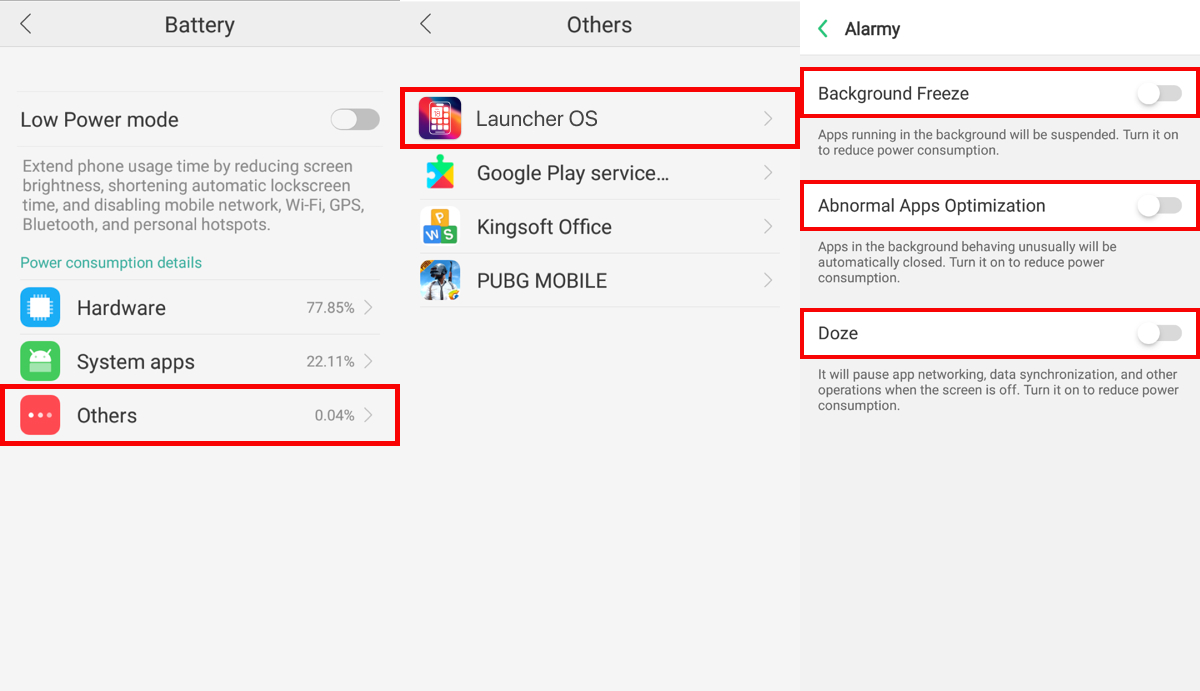
- [Settings - Battery - Energy Saver (or Others) - Alarm Clock - Turn off "Background Freeze", "Abnormal Apps Optimization" and "Doze"]
- If you are using battery or memory-saving applications, please exclude Alarm Clock from the list or do not use the applications.
- Leave your phone charged while you are sleeping.
2) Keep memory for Alarm Clock
- ⭐️Please clear your recent app list on the phone. (However, please note that alarms may not ring after executing the memory freed up function.)
- Do not use auto-reboot if you are using screen lock (e.g. password, pattern, and so on). Alarms cannot ring unless the screen is unlocked at least once after reboot.
3) Let Alarm Clock make sound
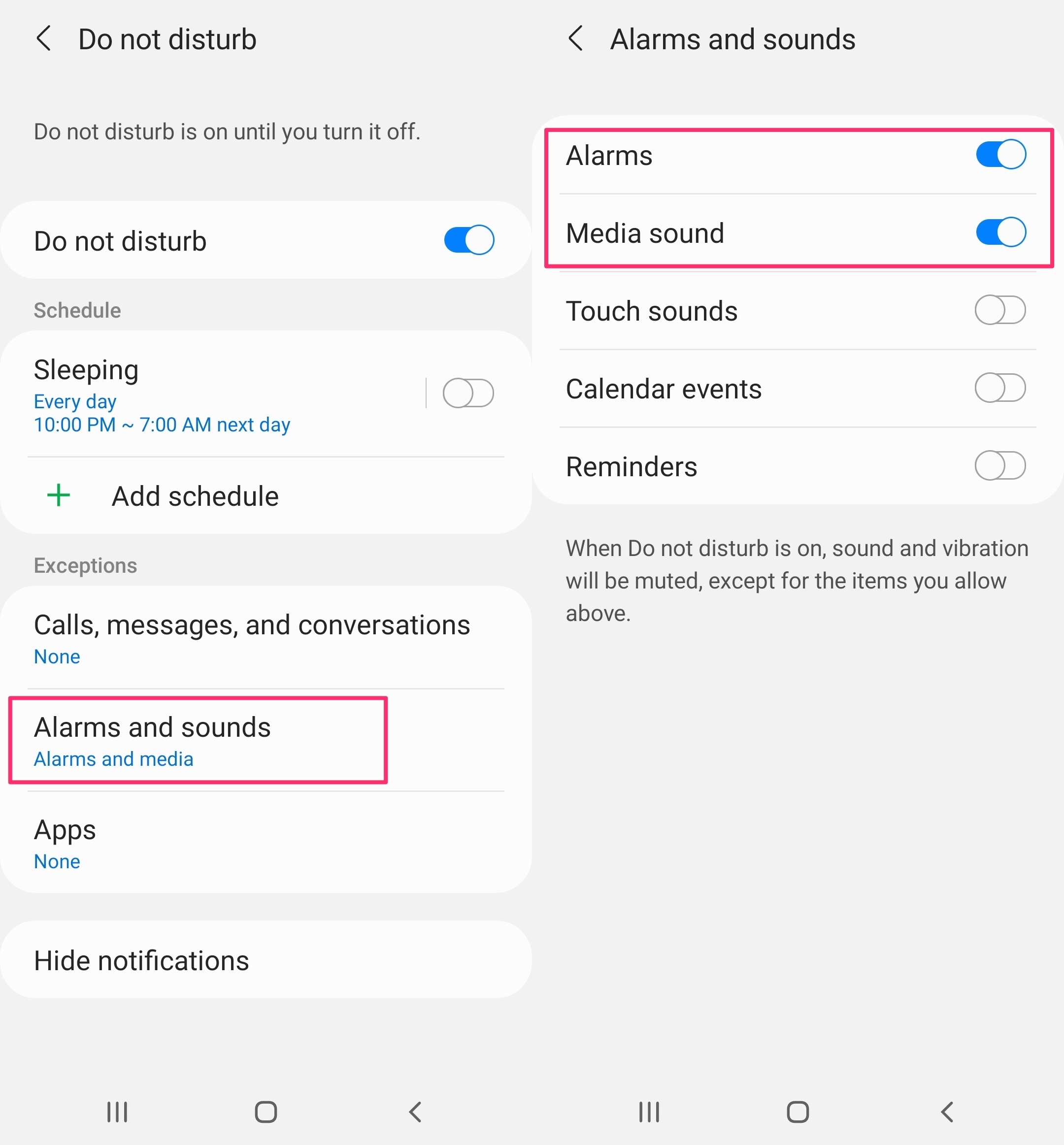
- When you use “Do not disturb”, please allow alarms and media sounds. Otherwise, it will not ring. (Menu titles in Settings may vary by OS version, manufacturers, etc.)
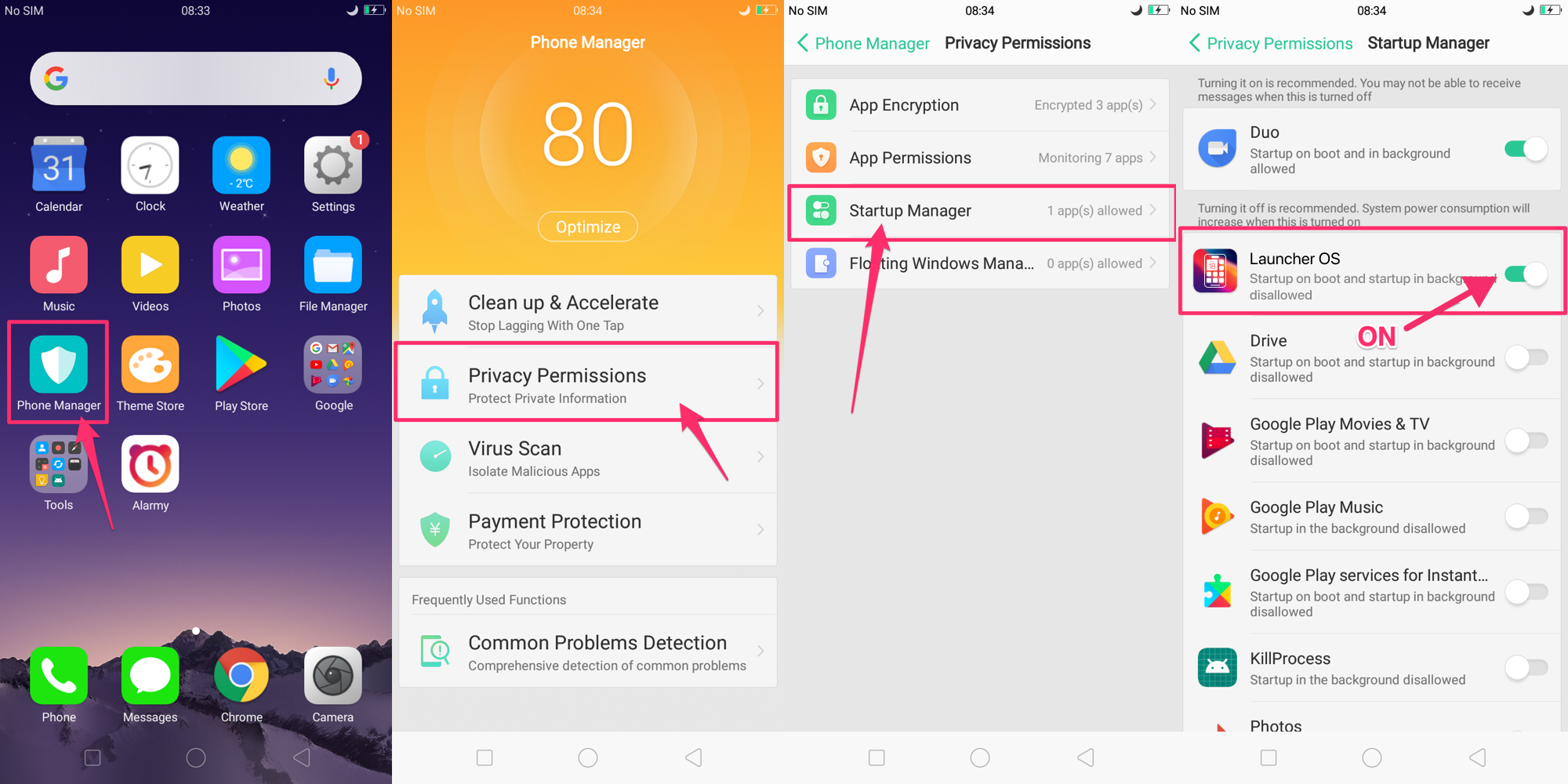
4) Let Alarm Clock autostart
- You can find it in "Startup manager" application.
5) Let Alarm Clock appear on top
-
Alarm Clock needs this permission to use the app properly.
- [Phone manager (in Home screen) - Privacy Permissions - Floating Windows Management]